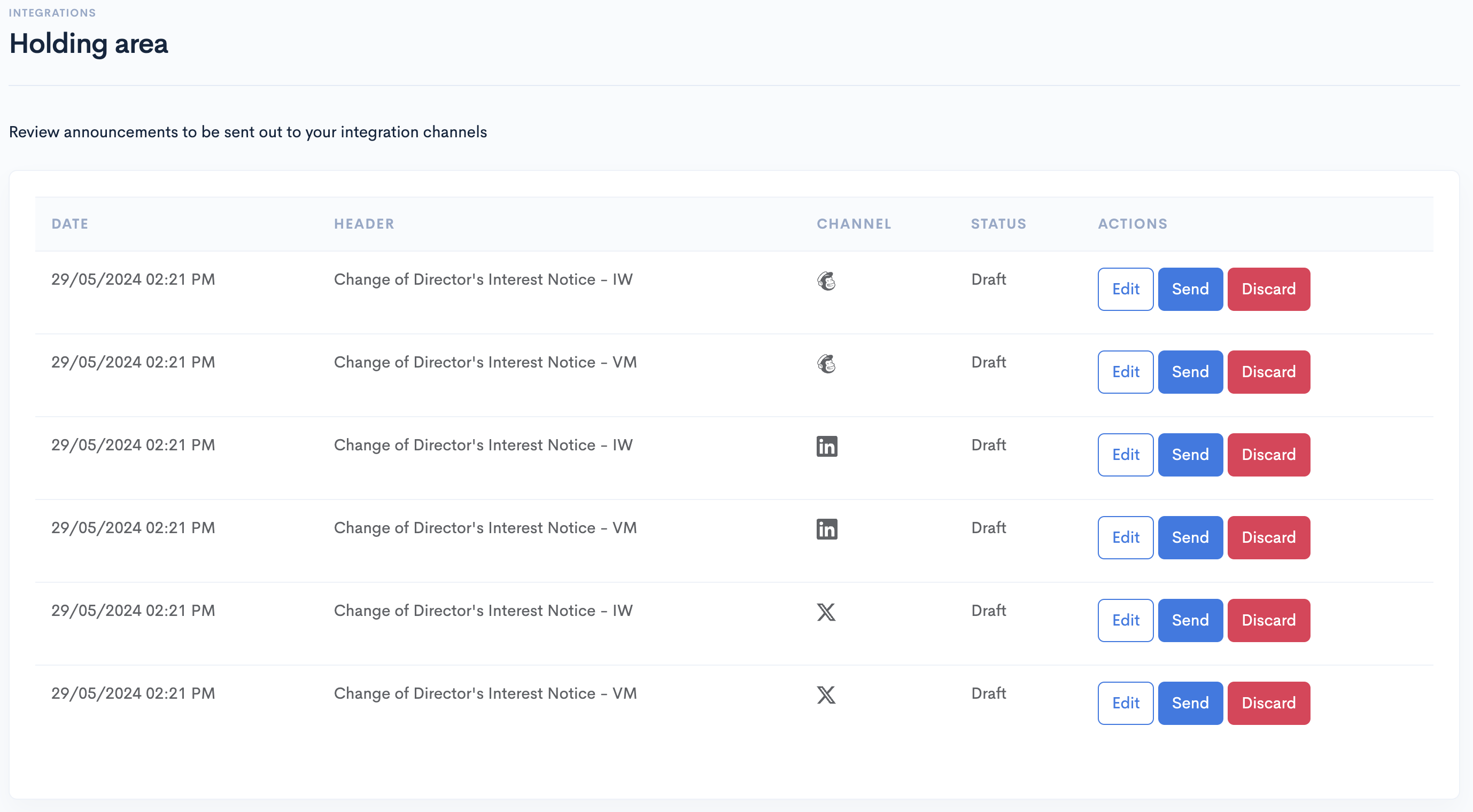
Holding area
Overview
Share Link's holding area allows you to review announcement integrations to be sent out to its integration channel, and announcement summaries generated using an AI language model.
Socials
Any MailChimp, LinkedIn or X integration that has Keep in holding area checked will send its announcement here.
To use this feature you must be subscribed to the Premium plan.
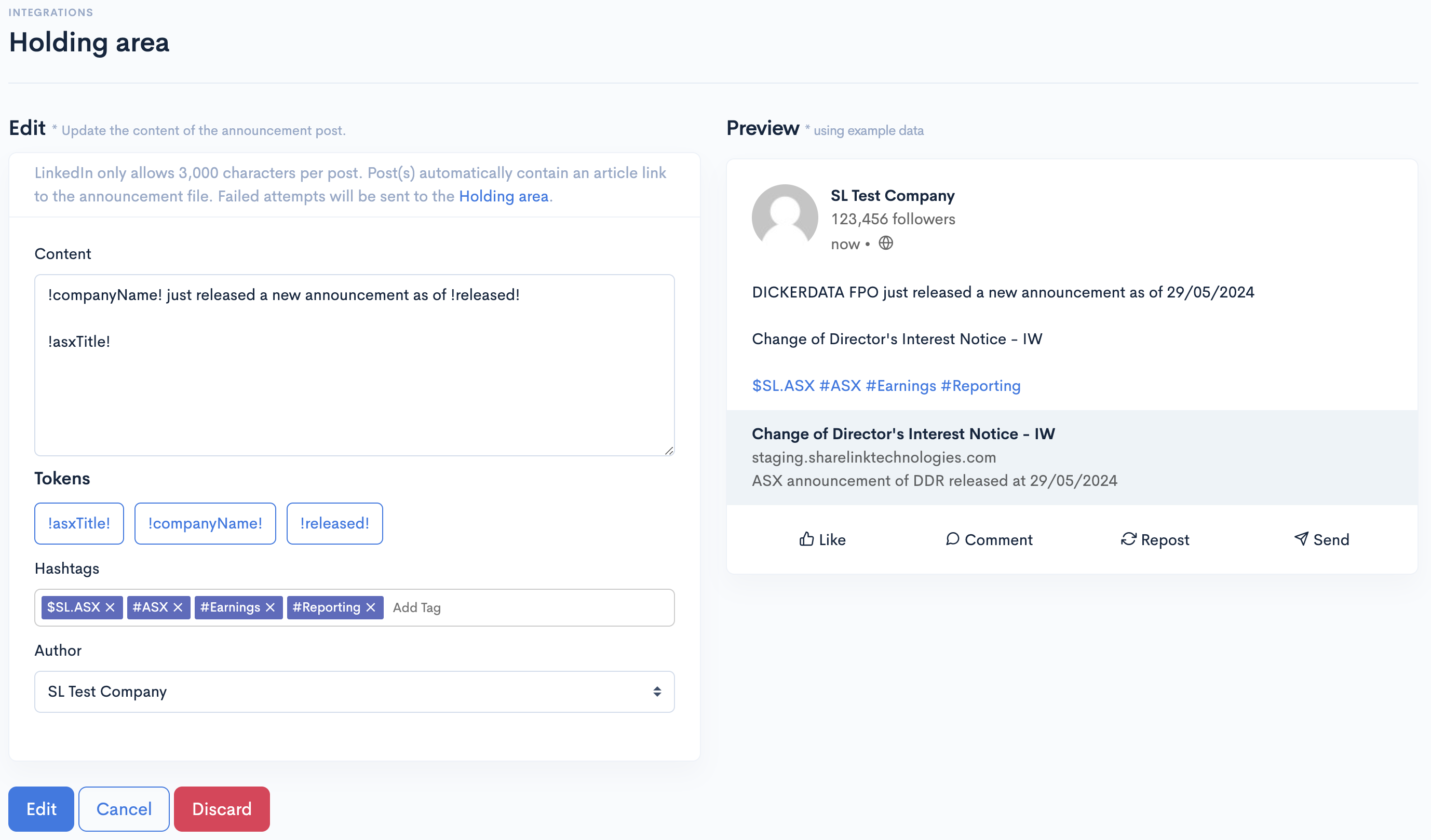
Edit announcement
Click on the "Edit" button of the announcement you want to edit. The options available is the same with the interaction of the integration channel.
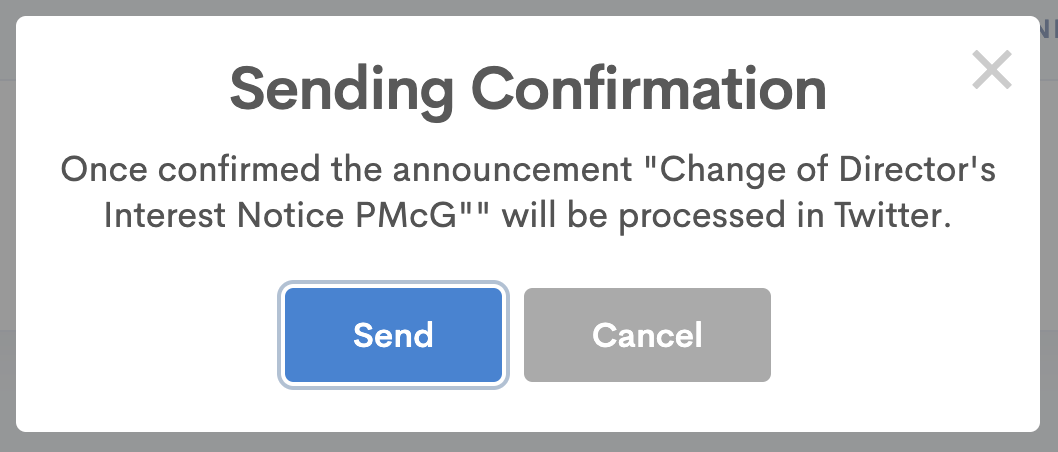
Send announcement
Click on the "Send" button of the announcement you want to send. Once confirmed, Share Link will send a request to the integration channel to send out the announcement based on the latest changes you have saved.
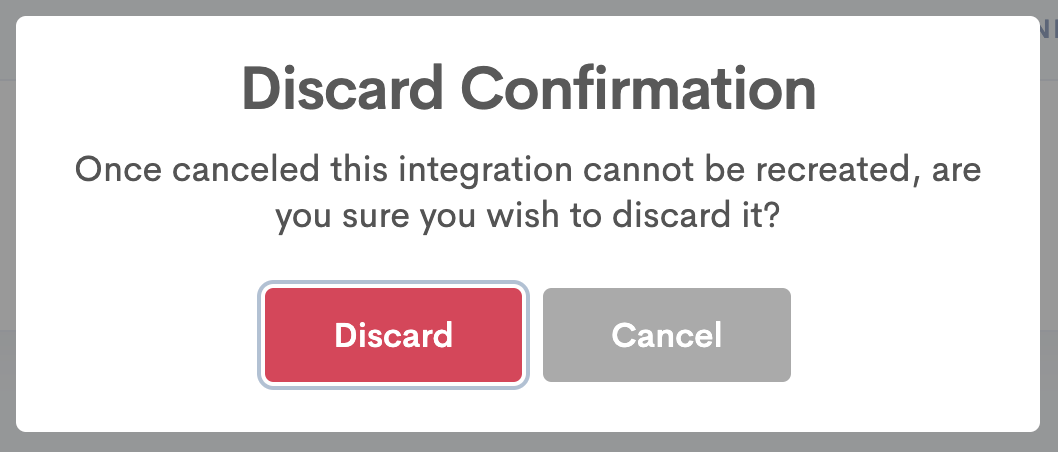
Discard announcement
Click on the "Discard" button of the announcement you want to discard. Once confirmed, the announcement interaction will be removed and it is not reversible.
Summaries
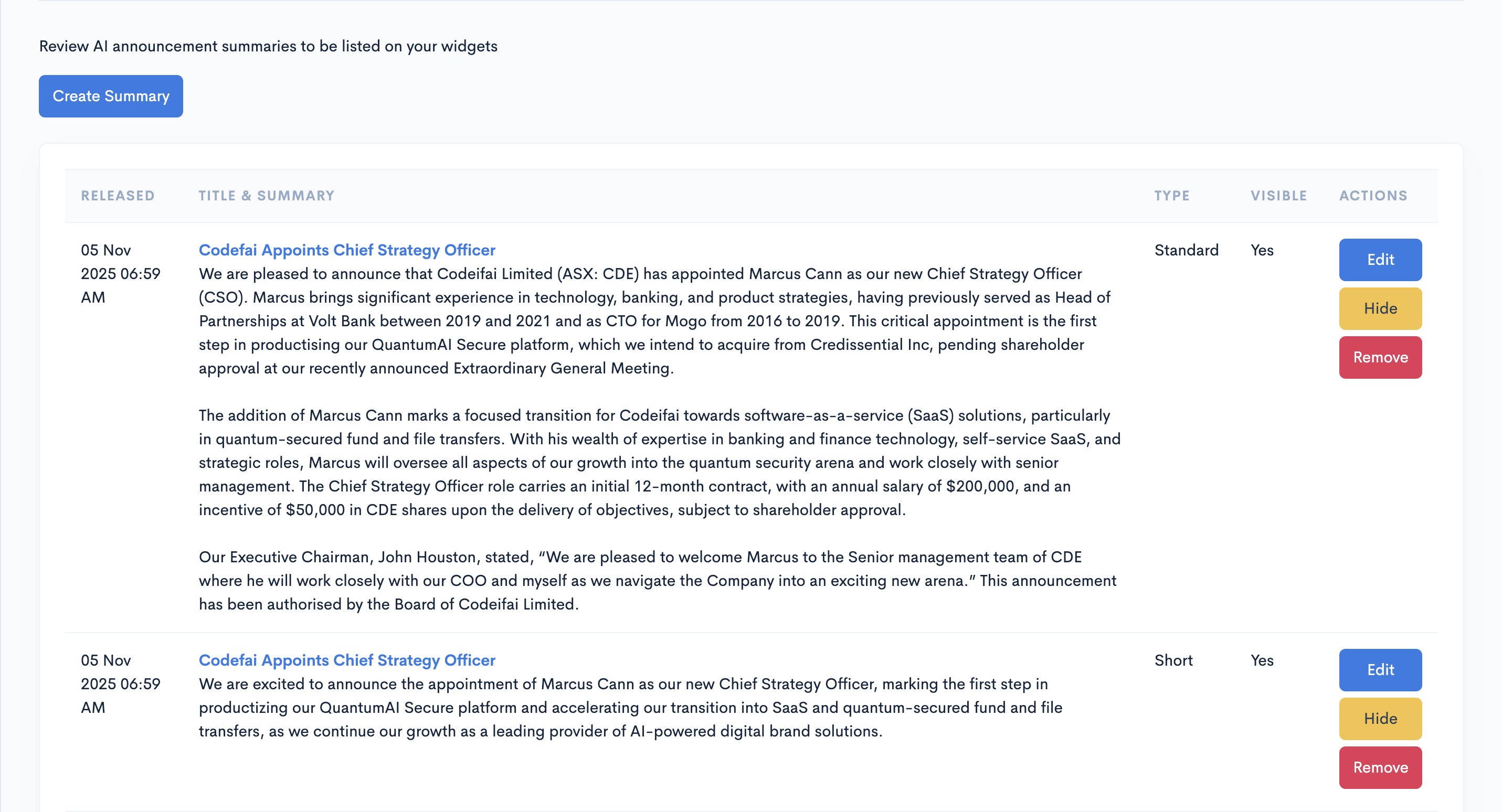
Review AI announcement summaries to be listed on your widgets.
To use this feature you must be subscribed to the AI plan.
Create summary
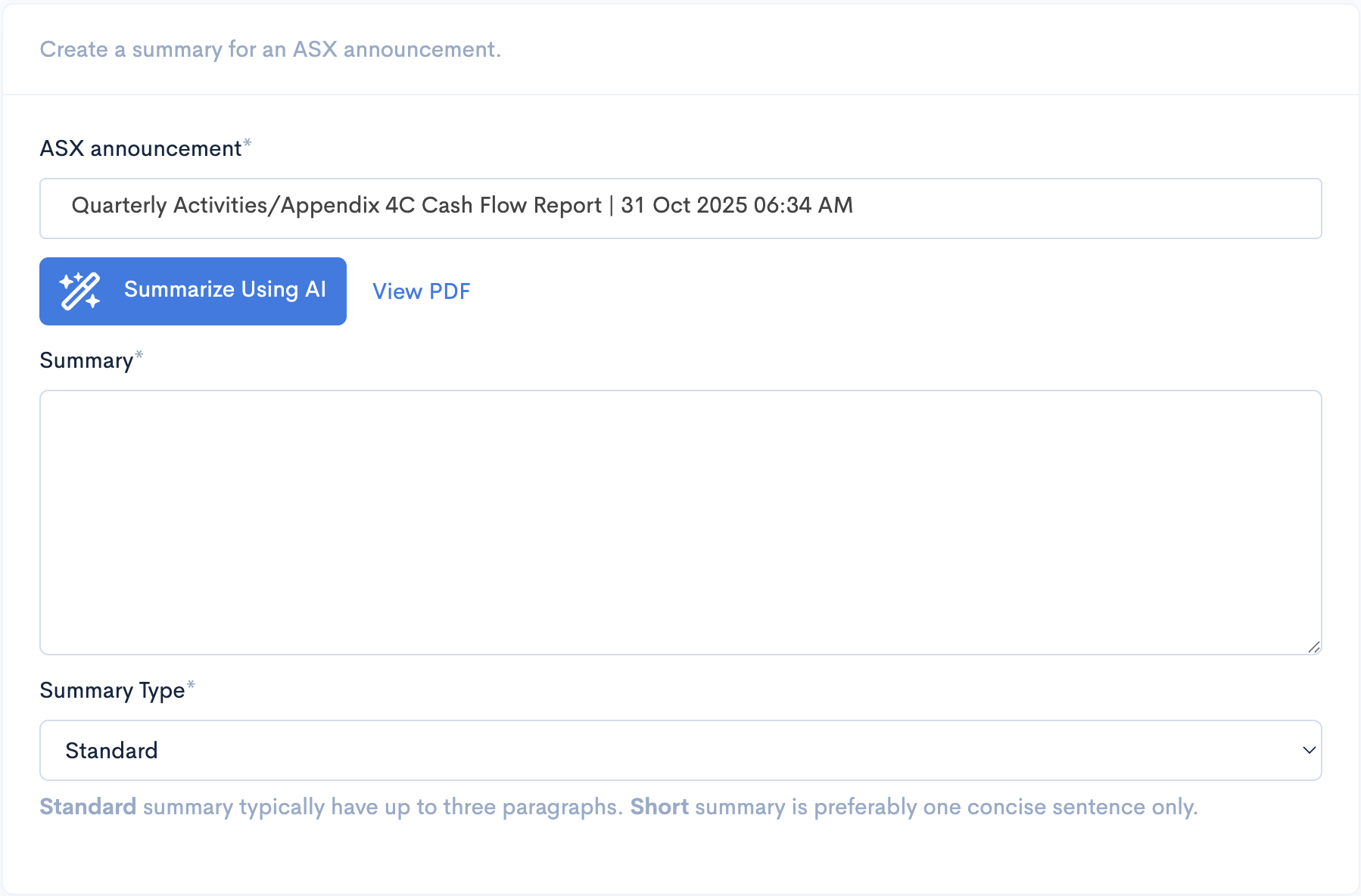
Click on the "Create Summary" button to show the create summary form. Select the announcement and the preferred type of summary (Standard or Short). Standard summary is composed of three paragraphs containing the summary, key points of the announcement, and a direct quote from the company while short summary is an abridged summary written in one sentence. Click on the "Summarize Using AI" to automatically generate the summary based on the selected type.
Edit summary
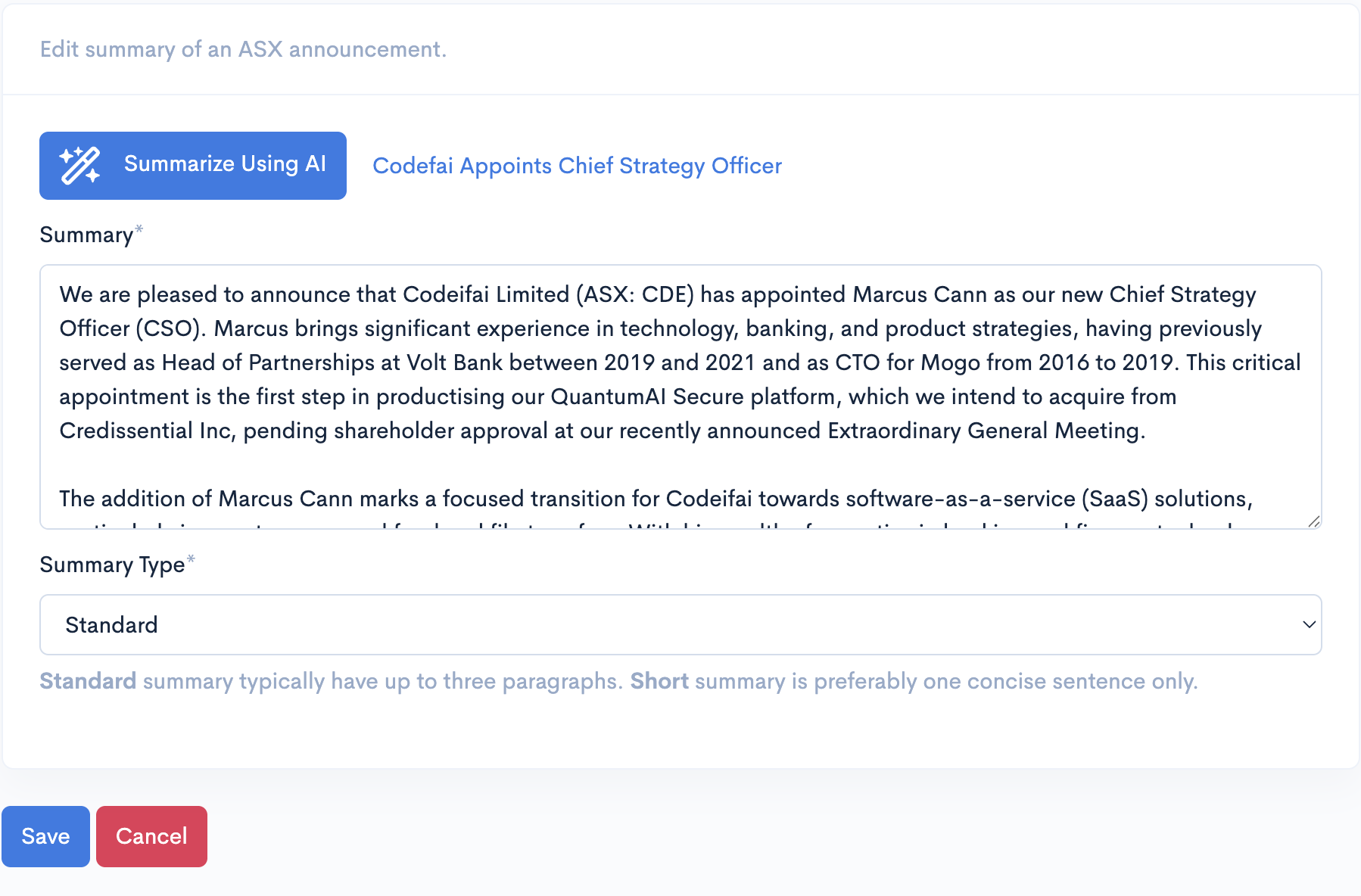
From the summaries page, click on the "Edit" button to show the edit summary form. You can freely modify the summary and save the changes by clicking on the "Save" button. Alternatively, you can ask the AI to regenerate another summary by clicking on the "Summarize Using AI" button.
Approve summary
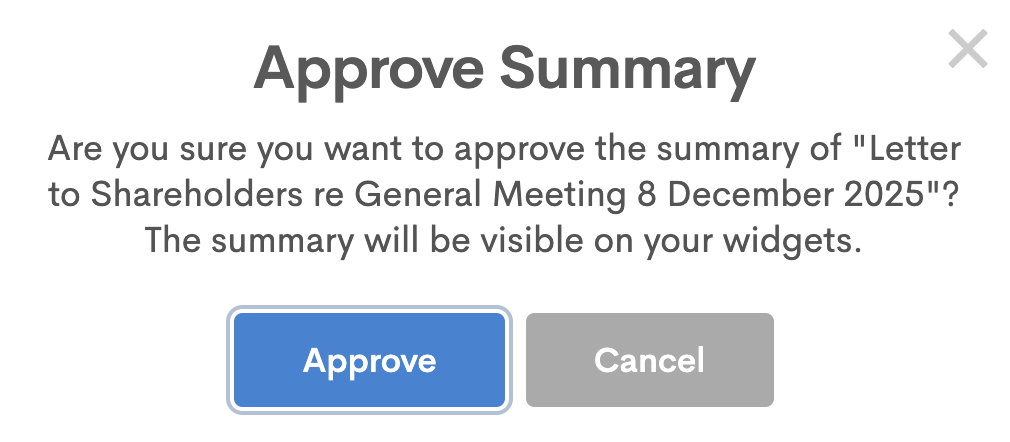
Approve a summary so it will be visible on your widgets by clicking on the "Approve" button.
Hide summary
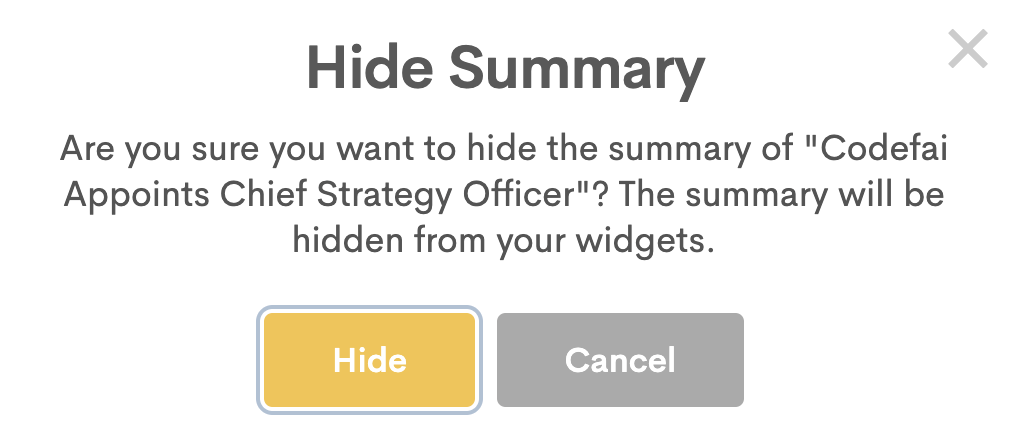
You can hide a summary from showing up on your widgets by clicking on the "Hide" button.
Remove summary
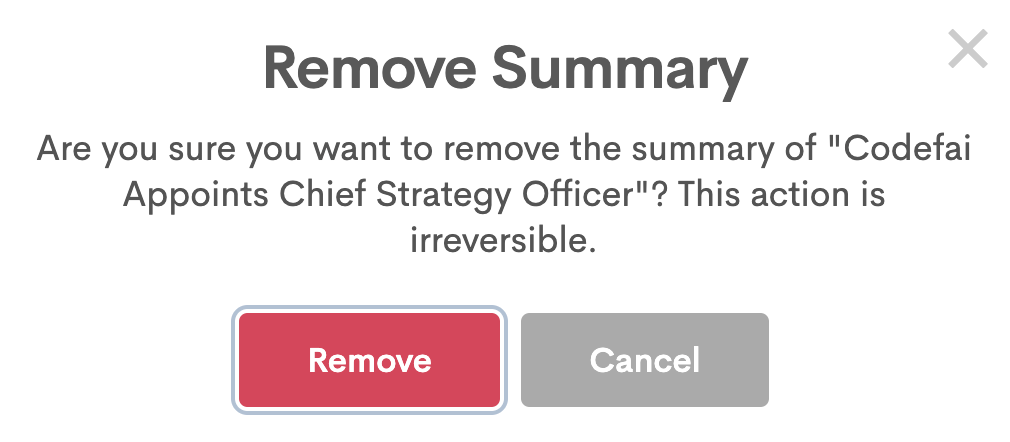
You can remove a summary from the summaries list by clicking on the "Remove" button.